
If TXRHLive is not working, you are not alone. Many Texas Roadhouse employees run into problems with the TXRHLive employee portal, including login errors, blank screens, failed password resets, verification code issues, and locked accounts. In most cases, the problem can be fixed in a few minutes with a few simple checks.
This guide explains the most common TXRHLive login issues, why they happen, and how to fix them step by step.
Why Is TXRHLive Not Working? Common Causes
Problems with the Texas Roadhouse employee login usually come from one of four areas: your login details, your browser, your internet connection, or your employee account status.
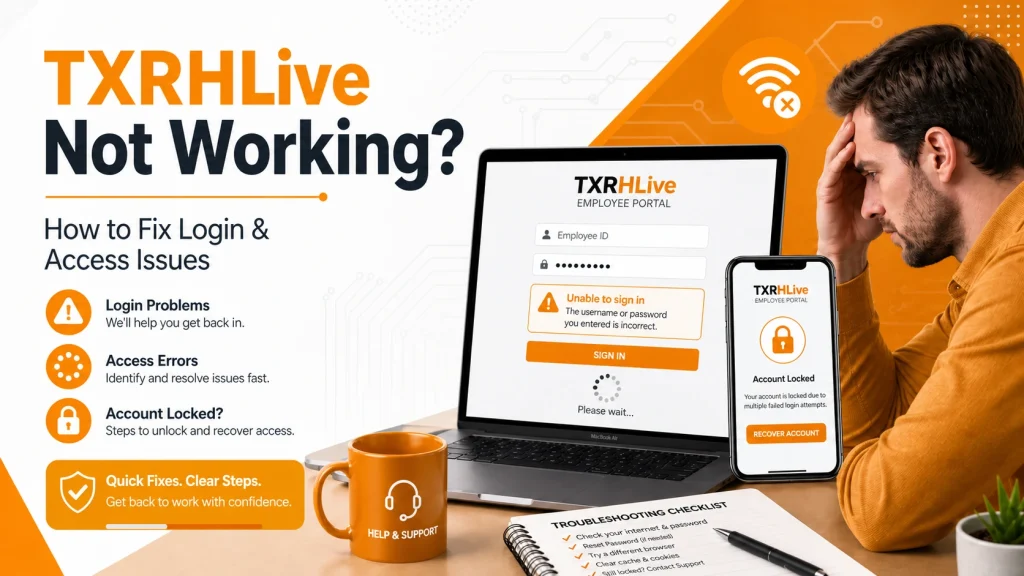
The most common causes include:
- Wrong username or employee ID
- Incorrect or expired password
- Account locked after too many failed sign-in attempts
- Old browser cache or cookies
- Browser extensions blocking the login page
- Weak or unstable internet connection
- Verification code not arriving
- Temporary portal downtime or scheduled maintenance
If TXRHLive is not working, one of these common causes is usually behind the problem.
Check Your TXRHLive Login Credentials First
Before trying advanced fixes, start with the basics. A small typing mistake is one of the most common reasons the TXRHLive sign in page fails.
Check these first:
- Make sure Caps Lock is off
- Enter your username or employee ID carefully
- Type your password by hand
- Do not copy and paste if it adds extra spaces
- Click Sign In and wait a few seconds
If you see an incorrect password, account not found, or sign-in failed message, move to the password reset step.
Reset Your TXRHLive Password
An expired or forgotten password is one of the top reasons the Texas Roadhouse employee portal stops working. Use the TXRH self-service password reset page to create a new password.
How to reset your TXRHLive password
- Go to sspr.txrh.com
- Enter your username or employee ID
- Choose a verification method such as email or text message
- Enter the verification code you receive
- Create a new password
- Return to TXRHLive and sign in again
If the verification code does not arrive
- Check your spam or junk folder
- Make sure the email address or phone number linked to your account is correct
- Wait 2–3 minutes and request a new code if it does not arrive
If the Self-Service Password Reset (SSPR) page is also not working, your TXRH employee account may be locked or inactive. In that case, contact your store manager or HR team.
Clear Browser Cache and Cookies
If TXRHLive is not working because the page is blank, keeps loading, or redirects after sign in, old browser data is often the reason.
Old saved browser data can stop the TXRHLive login page from loading the right way. This is a common cause of blank pages, redirect loops, or pages that never fully open.
On Google Chrome
- Click the three dots in the top-right corner
- Open Settings
- Go to Privacy and Security
- Click Clear Browsing Data
- Select Cookies and other site data and Cached images and files
- Click Clear Data
- Close and reopen Chrome, then try TXRHLive again
On Safari for iPhone or iPad
- Open Settings
- Scroll down and tap Safari
- Tap Clear History and Website Data
- Confirm the action
- Open Safari again and try signing in
Quick test
Open a private or incognito window and try logging in. If TXRHLive works in incognito mode, your regular browser cache, cookies, or extensions are likely causing the problem.
Try a Different Browser or Device
If TXRHLive is not working on one browser, test another browser or device before moving to the next fix. Sometimes the issue is not your account. It may be your browser or your device.
Try these options:
- Switch from Chrome to Microsoft Edge
- Switch from Safari to Chrome
- Use your phone instead of your computer
- Use your computer instead of your phone
- Make sure your browser is fully updated
This can help if the TXRHLive employee portal stays blank, keeps loading, or sends you back to the sign-in page.
Check Your Internet Connection
A weak connection can interrupt the Microsoft sign-in process and stop the portal from loading properly. Even if your internet seems fine for normal browsing, it may still cause login sessions to fail.
Try these steps:
- Move closer to your Wi-Fi router
- Switch from Wi-Fi to mobile data
- Switch from mobile data to Wi-Fi
- Restart your router
- Avoid weak public networks
If you are on a work network, test your personal mobile connection too. Some networks can block outside sign-in pages.
Disable Browser Extensions
Ad blockers, privacy tools, and antivirus browser add-ons can interfere with the TXRHLive login page. This can lead to a blank screen, login loop, or sign-in page that never finishes loading.
How to test this
- Open a private or incognito window
- Try signing in to TXRHLive
- If it works there, one of your extensions may be the issue
- Go back to your regular browser
- Turn off extensions one at a time until you find the cause
Common extensions that may create login problems include ad blockers, privacy tools, and script blockers.
Wait and Try Again Later
If your login details are correct and none of the fixes above work, the TXRHLive employee self-service portal may be down for maintenance.
In that case:
- Wait 15 to 30 minutes
- Try again on another browser or device
- Ask a coworker if they are seeing the same issue
- Check with your manager for any portal outage notice
Temporary portal issues do happen from time to time.
When to Contact Support
If you have tried every step and still cannot access your Texas Roadhouse employee account, you may need direct help.
Contact support if:
- Your password reset does not work
- The verification code never arrives
- Your account is locked
- Your account may be inactive
- TXRHLive fails on every browser and device
- You are a new employee and your login has never worked
Who to contact
Store Manager
Your manager can confirm whether your employee account is active in the system.
HR Team
HR can help with account access, onboarding issues, and identity checks.
IT Help Desk
If needed, your manager or HR team can pass the issue to the Texas Roadhouse IT team.
TXRHLive Not Working Quick Fix Table
| Problem | What to Do |
| Wrong or expired password | Reset it at sspr.txrh.com |
| Blank page or page not loading | Clear cache and cookies |
| Login keeps failing | Try another browser or device |
| Verification code not arriving | Check spam and confirm contact info |
| Weak internet | Restart router or change networks |
| Extensions blocking login | Disable extensions or use incognito mode |
| Portal down | Wait and try again later |
| Locked or inactive account | Contact your manager or HR |
Final Thoughts
If TXRHLive is not working, start with the simple fixes first. Check your login details, reset your password, clear your browser data, try another browser, and test your internet connection. These steps solve most Texas Roadhouse employee login issues.
If the problem continues after that, the issue may be tied to your employee account status, a locked account, or a portal outage. In that situation, your manager or HR team is the best next step.
Frequently Asked Questions
Why does TXRHLive keep saying my password is wrong?
Your password may be expired, entered incorrectly, or your account may be locked after several failed attempts. Use the TXRH password reset page at sspr.txrh.com.
Why is the TXRHLive login page blank?
This is often caused by old browser cache, blocked scripts, browser extensions, weak internet, or a temporary portal issue.
Can I access TXRHLive on my phone?
Yes. The TXRHLive employee portal works on mobile browsers such as Chrome and Safari.
What if my TXRHLive account is locked?
Try the self-service password reset first. If that does not solve it, contact your store manager or HR team for account help.
Why does TXRHLive keep redirecting me back to the login page after I sign in?
This usually happens because of cache, cookies, or a browser issue. Clear them and try again. If it continues, use incognito mode or another browser.
Why is TXRHLive not working after I enter my login details?
This may happen because of an expired password, old browser cache, weak internet, or an account issue. Try the basic fixes first, then contact your manager or HR if the problem continues.